How to Enroll Multiple Employees in dlrSecured Identity Management
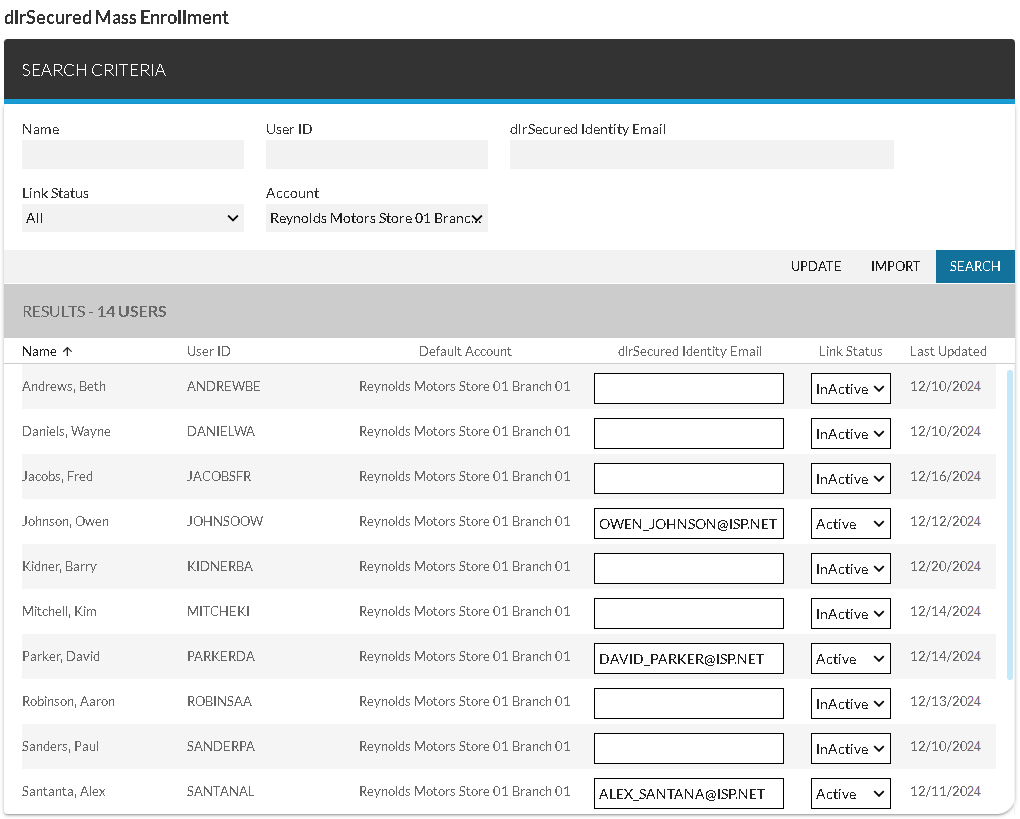
The Search Criteria panel on the dlrSecured Mass Enrollment screen in the XtreamService application can be used to enroll multiple employees in dlrSecured Identity Management using a single screen. Using dlrSecured, employees are required to complete multifactor authentication (MFA) when signing on to the XtreamService application by providing a unique verification code sent to their Email address. In addition, the Email addresses linked to dlrSecured can be reviewed and updated for multiple XtreamService accounts using this screen.
Note - It is recommended that corporate Email addresses be used to enroll employees in dlrSecured.
-
Access the dlrSecured Mass Enrollment screen.

To access the dlrSecured Mass Enrollment screen, click the
 (More) icon and then click the dlrSecured Mass Enrollment link in the Settings section.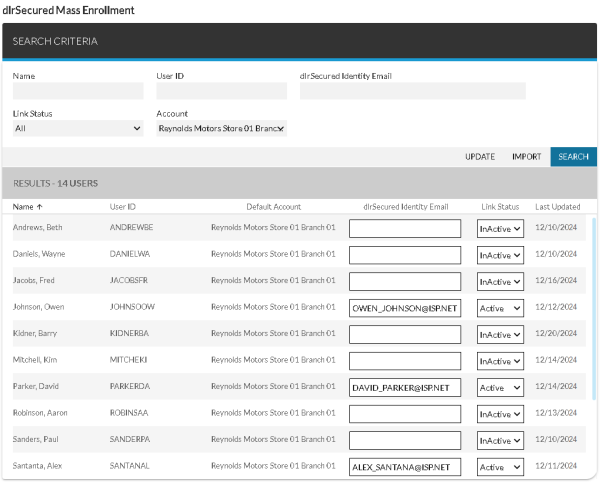
-
(Optional) Enter a partial name of the employees to enroll in the Name field, such as Smith or Jones.
-
(Optional) Enter a partial User ID of the employees to enroll in the User ID field, such as ADMIN or SMITH.
-
(Optional) Enter a partial Email address linked to dlrSecured for the employees to enroll in the dlrSecured Identity Email field, such as @reynoldsmotors.com.
-
Select All in the Link Status field to display all employees regardless of whether they are enrolled in dlrSecured.
Click the
 (Down Arrow) icon to display a list of valid entries.
-or-
Select InActive in the Link Status field to only display employees who have not been enrolled in dlrSecured.
-
Select All in the Account field to display employees for each XtreamService account to which you have access.
Click the
(Down Arrow) icon to display a list of valid entries.-or-
Select an XtreamService account in the Account field to only display employees for that account.
-
Click the SEARCH button.
Employees matching the entered criteria display in the Results section.
-
In the dlrSecured Identity Email column, enter the Email address to link to dlrSecured for each employee that should be enrolled in dlrSecured.
-
In the Link Status column, select Active for each employee to enroll.
-
Click the UPDATE button to save the changes.
The employees are enrolled in dlrSecured, and the Email addresses are linked.
Advanced Topics
Importing Email addresses to enroll employees in dlrSecured
Email addresses can be automatically entered in the dlrSecured Identity Email field on the Edit User panel and employees can be enrolled in dlrSecured by importing a .csv file, .txt file, or .xlsx file. To import a file, access the dlrSecured Mass Enrollment screen and click the IMPORT button. The dlrSecured List Import window displays, where a file can be imported.
The file must include columns from left to right in the following order:
-
User ID
-or-
Last Name column and First Name column
-
dlrSecured Identity Email
-
Link Status
Note - When Active is entered in the Link Status column, the employee is enrolled in dlrSecured.
For more information about importing Email addresses to enroll employees in dlrSecured, refer to How to Import Email Addresses to Enroll Employees in dlrSecured Identity Management.
Click here for a list of products that may be mentioned in this help file.